
Documentation
Your first Ntfyx HTTPS notification: from hello to a service check
Send hello with your app’s HTTPS link, verify delivery, then choose a service-health rule. A dated Android emulator check and practical troubleshooting.
Updated
What we checked on 17 October 2026
#Start with one message you can identify: hello in MyNotify. Once that works, define what a healthy service response should look like. The HTTP and monitoring references cover the complete options; this example follows the first test and the decisions to make when its result is unexpected.
| Check | Observed result | Test environment |
|---|---|---|
| First HTTPS message | The app displayed and copied the same short-key URL, sent it from Send test, and verified the matching MyNotify / hello message. A matching FCM callback, successful decryption and system notification record were observed. | Ntfyx 1.5.2, Android 10 / API29 GMS emulator, real staging service. |
| Uncertain response and retry | A persisted test made four GET requests during deliberate response loss, restart and pause/resume. They resolved to one accepted message, confirmed by signature verification, receiver decryption and synchronization. | iOS NtfyxCore 1.5.2 PhoneClient running on macOS, real staging service. |
| Monitor setup | Android checked preview, creation, its separate system Topic, pause and deletion. The iOS core check also exercised text/JSON previews, private-address rejection and monitor management. | Real staging requests; this was not a natural hourly failure-and-recovery run. |
1. Send the first hello from the app
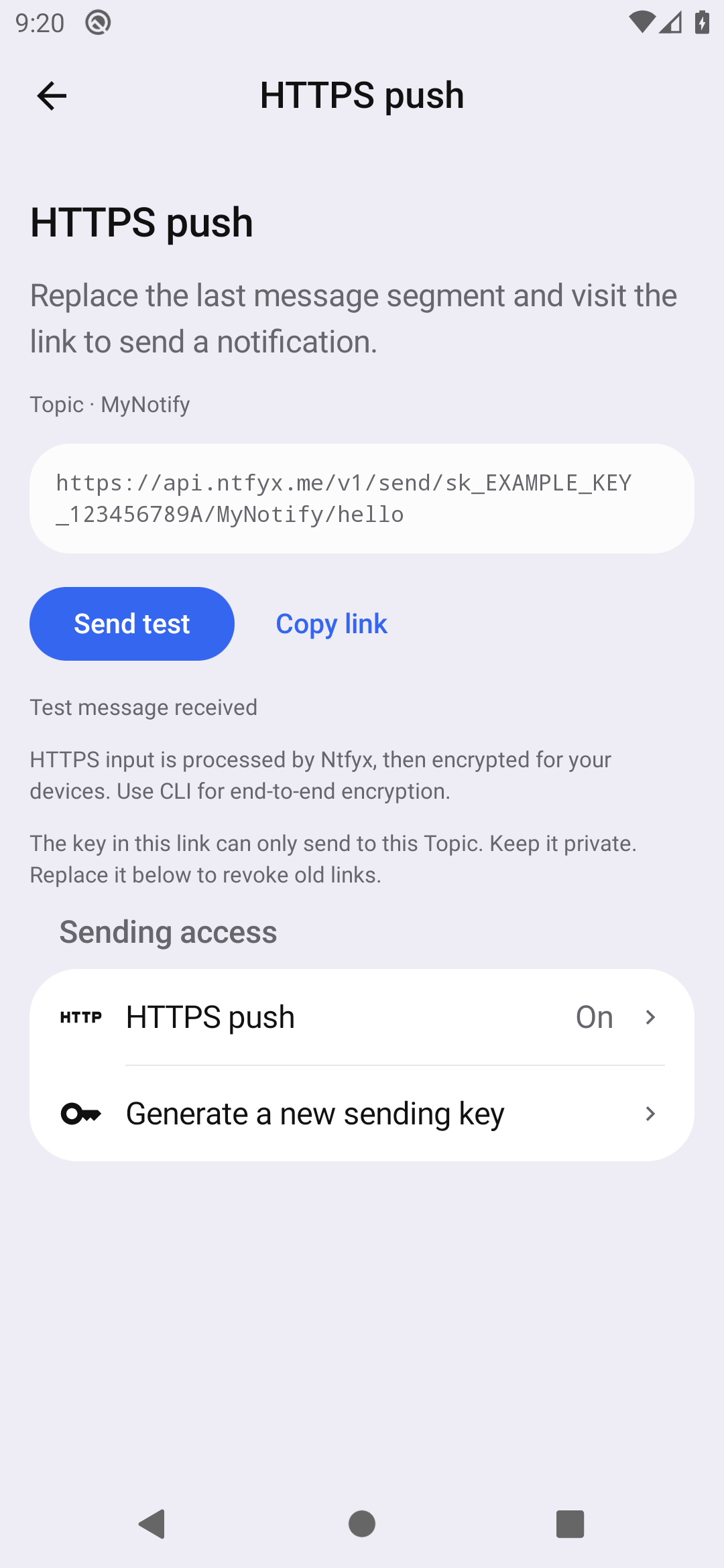
#Use a release with short HTTPS sending links: app 1.5.2 or later. This example starts with a new Inbox and its MyNotify Topic. For an existing Inbox, use the Topic alias in your own link. If an earlier test is still waiting, check that original delivery before starting a new test.
- Open HTTPS push for your Topic. Check that a sending link is ready.
- Tap Send (Send test in the pictured 1.5.2 release). Keep the app connected while it waits for the matching notification.
- In this new Inbox, open MyNotify and check the title and body: MyNotify and hello. Then check whether a system alert was also shown.
2. Read the result before sending again
#Request acceptance, a verified Inbox message and a system alert answer three different questions. A response from the API alone is not the end of this test.
| What you see | What it establishes | What to do next |
|---|---|---|
| Accepted / waiting | The service accepted the request; the app has not yet confirmed its matching message. | Let the app synchronize. Use Check delivery if offered before deciding to send a new test. |
| The matching hello in MyNotify | The app received and verified that message. | Your Inbox path works. If no alert appeared, check notification permission, Topic quiet hours and connectivity. Android push requires Google Play services. |
| A system notification | The operating system posted an alert for that message. | Opening the notification can take you to the conversation. Delivery does not mean you personally saw or acted on it. |
3. Copy the link for your own next message
#Copy the complete link from your app. For a different message, replace only the final message segment with UTF-8 percent-encoded text, such as backup%20finished. Keep the key and Topic segment unchanged. The URL below is an Example placeholder and cannot send.
https://api.ntfyx.me/v1/send/sk_EXAMPLE_KEY_123456789A/MyNotify/hello4. Add a health check for a service you operate
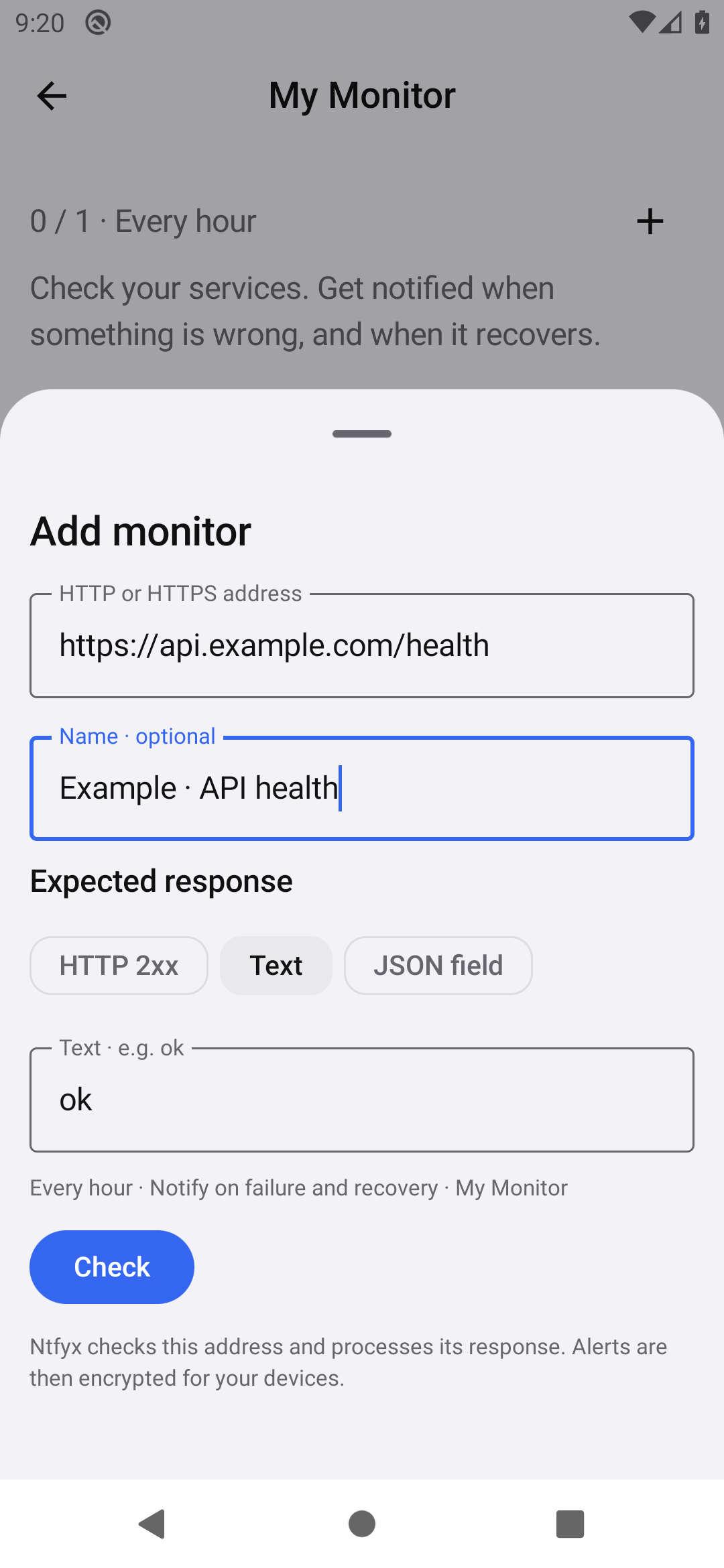
#After the first message works, open Discover → My Monitor. Use a public HTTP or HTTPS health endpoint whose expected response you know. The example.com address in the image is illustrative; substitute your own public endpoint.
- Choose Add monitor, enter the address and give it a recognizable name.
- Start with HTTP 2xx if a successful status is sufficient. For plain text, select Text. In app 1.5.3, preview the response before entering the exact expected text, such as ok.
- Tap Check and inspect the returned status and rule result. Fix an unexpected result before enabling it.
- Tap Enable monitoring when the result matches. Future checks run every hour; this is not a continuous uptime probe.
Choose a rule that distinguishes healthy from unhealthy
#A text rule checks a case-sensitive substring. If a JSON service can return status: not ok, searching for ok still matches. For that service, choose JSON field, use status as the field and the string ok as the expected value. Every rule also requires a final HTTP 2xx status. These are rule examples, not a recorded incident log.
| Response example | Text contains ok | JSON status equals string ok |
|---|---|---|
| HTTP 200 · {"status":"ok"} | Matches | Matches |
| HTTP 200 · {"status":"degraded"} | Does not match | Does not match |
| HTTP 200 · {"status":"not ok"} | Matches: the substring is present | Does not match |
| HTTP 503 · {"status":"ok"} | Fails the HTTP status requirement | Fails the HTTP status requirement |
How failure confirmation and recovery work
#A first failed check, while no incident is open, is confirmed 60 seconds later. If that check also fails, one failure alert is queued; continuing failures are recorded and alert again at each subsequent hourly check. The current service records every finalized hourly result, including continuing failures and later recovery.
App 1.5.3 defaults to failure-only alerts: healthy and recovered results stay in the conversation silently. Turn that option off to receive an alert for every result. Each monitor keeps these messages in its own Session inside the system My Monitor Topic.